Keep your books up to date
Once your books are set up, keeping them current takes a few minutes a month. You download the new statements and give them to your coding agent, which runs the same steps as the first time and asks you only about what is new.
Download the statements Update lists
Section titled “Download the statements Update lists”Update lists each bank and card under Download these statements:
| Column | What it means |
|---|---|
| Download from | The month the next statement should start in |
| Imported until | The last day the account’s statements cover, in your books or waiting in Review |
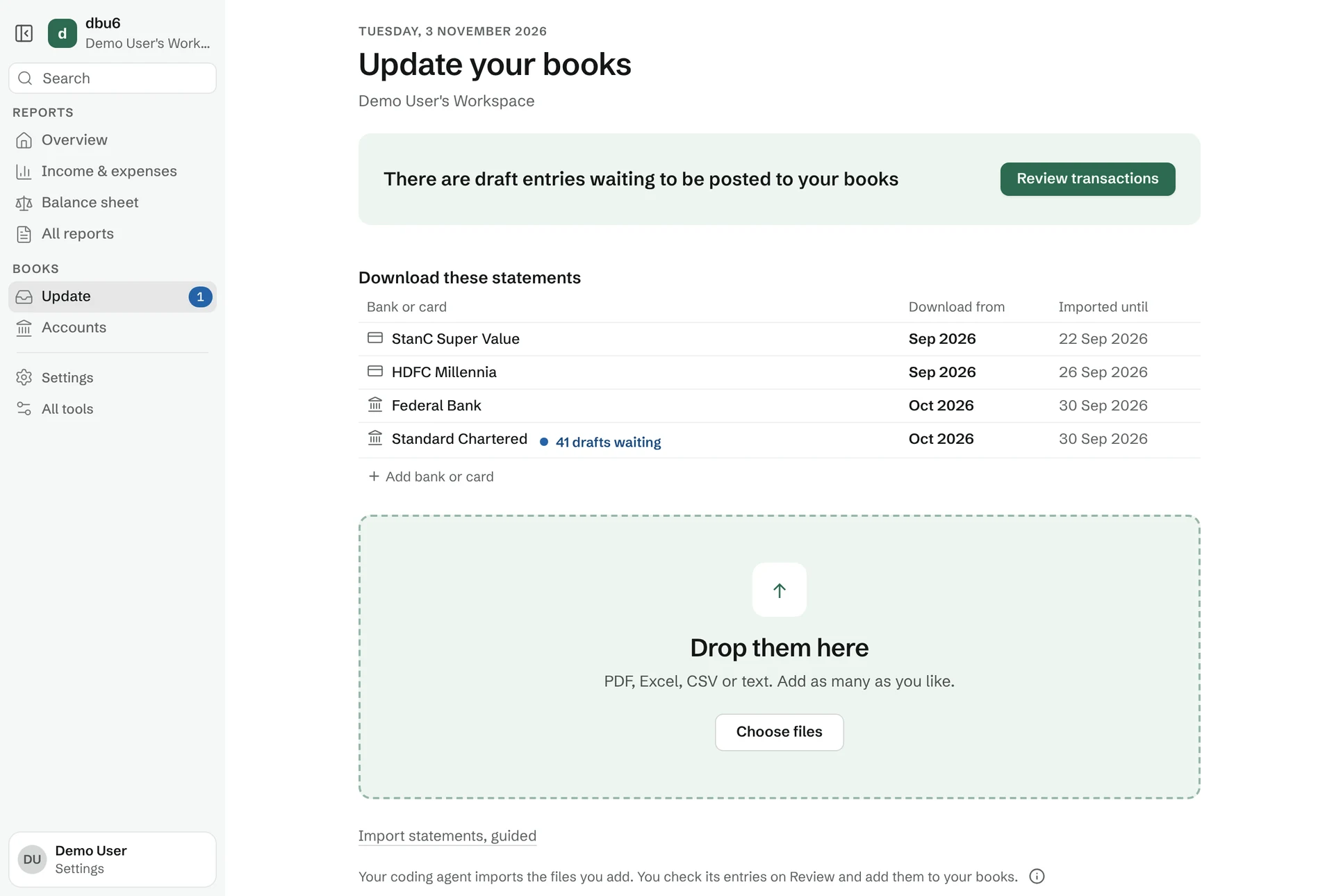
For example, an account imported until 30 September shows Oct 2026 under Download from, and an account imported until 13 October also shows Oct 2026, because its October statement is not complete yet. Download each account’s statements from that month to today.
Give them to your agent
Section titled “Give them to your agent”Drop the files on Drop them here on Update, and press Add N files to my books. You can also open your agent in your books folder and tell it where the files are, for example “Do my books from the statements in ~/Downloads/november”.
The run follows the same three messages as the first time (Set up your books with your coding agent), with less in each:
- Message 1 shows what is already in your books, for example “Standard Chartered is in your books up to Oct 2026”, and lists the new statements. Because your accounts are already set up, there is usually nothing to ask before the agent starts.
- Message 2 leaves out the summary of your money, because you have seen it before. Your rules, including the ones made from your earlier answers, categorize most new transactions, so the agent asks only about new payees and the transactions it can’t settle.
- Message 3 lists what to do now, as before.
If you open a new bank account or card, drop its statements with the others so the agent sets it up the same way as the first ones.
Add them to your books
Section titled “Add them to your books”Open the link at the top of Message 3, or Review transactions on Update. On Review, clicking Add N entries from M accounts to my books adds every ready account at once. You can also tell the agent “add them to my books”.
If an account isn’t ready, Message 3 explains why, and Review counts what is left under Left to fix. Press Fix these on Review to hand everything that is left back to your agent. The agent starts from the transactions already in Review, shows you its plan, asks its questions in one round and reports, as in a run from new statements.
To fix one transaction yourself, open the account on Review and change it in the Drafts tab. Doing it by hand describes the rest of Review’s checks and tabs.
Change how something is categorized
Section titled “Change how something is categorized”If the agent put a payee in the wrong category, tell it, for example:
Always put SWIGGY under Food Delivery, and fix the ones in ReviewThe agent adds a rule and recategorizes the transactions in Review that the rule matches. Categorization describes the rules.
Read Overview
Section titled “Read Overview”Overview opens on the current month, and you can step to other months with
the month picker at the top or the [ and ] keys. It shows:
- Income, Spent, Saved and Saved % for the month, each with a sparkline of the months before it.
- Spending by category, showing the month’s largest categories with Other and the total. Clicking a category opens its month-by-month chart or its entries.
- Net worth on the last day of the month, by group of assets and liabilities.
- Accounts, showing each bank and card’s balance and the last day its books are complete (Books until).
A month is complete only when every account’s statements cover it. Because Overview shows little for the current month early in a month, step back to the last complete month.
Income & expenses, Balance sheet and All reports have more detail (Reports). You can also ask your agent about your money in your own words (Things to ask your agent).